
Field Configuration
How fields, field order and field-level updates work.
Fields are based on the live HighLevel object schema. Every time the form is opened or reloaded, the app retrieves:
- the current object schema
- the current CRM record values
Field Order
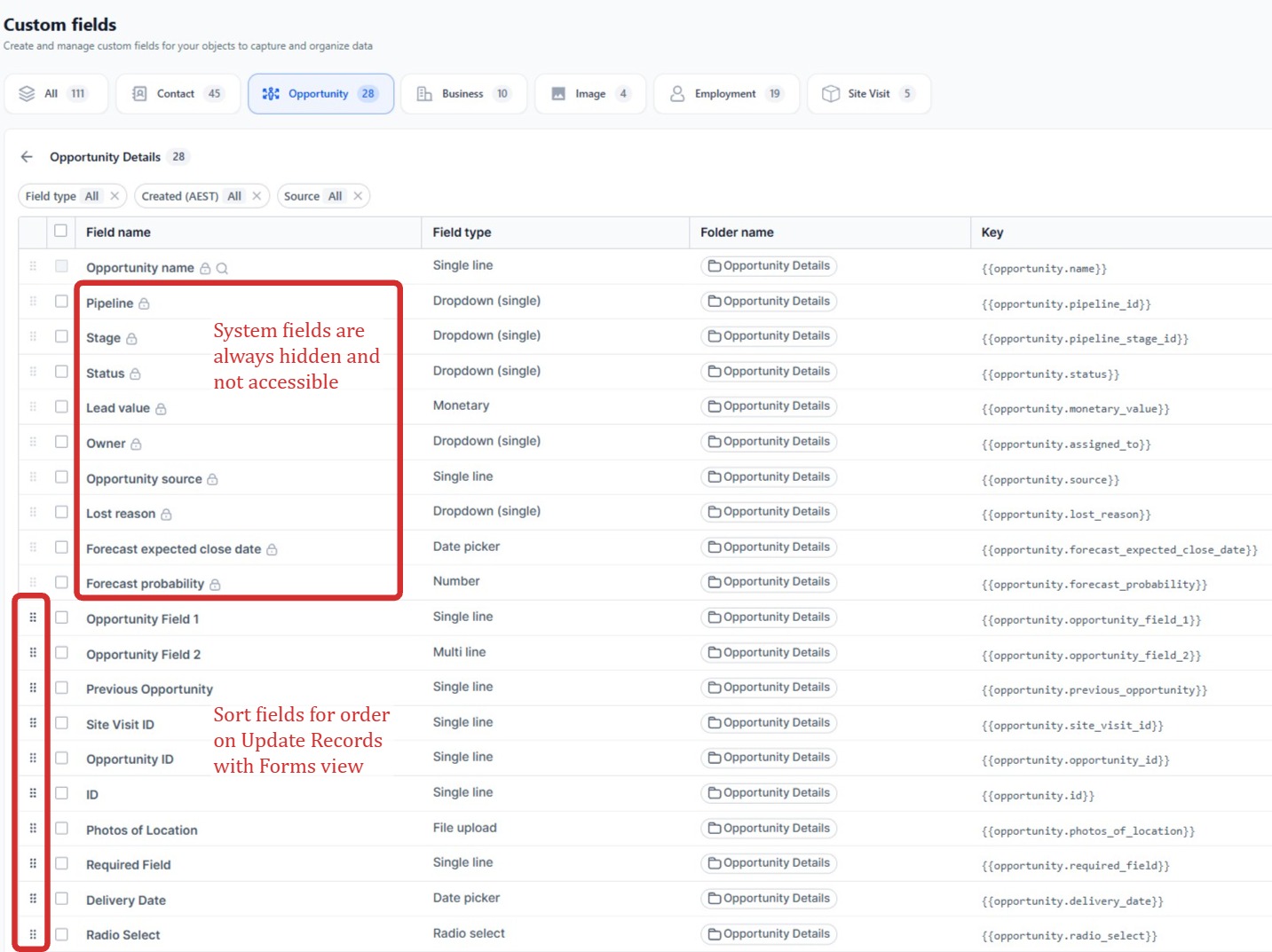
Fields follow the order configured natively in HighLevel for custom fields. No separate field-order configuration is required in Update Records with Forms.
Field Descriptions
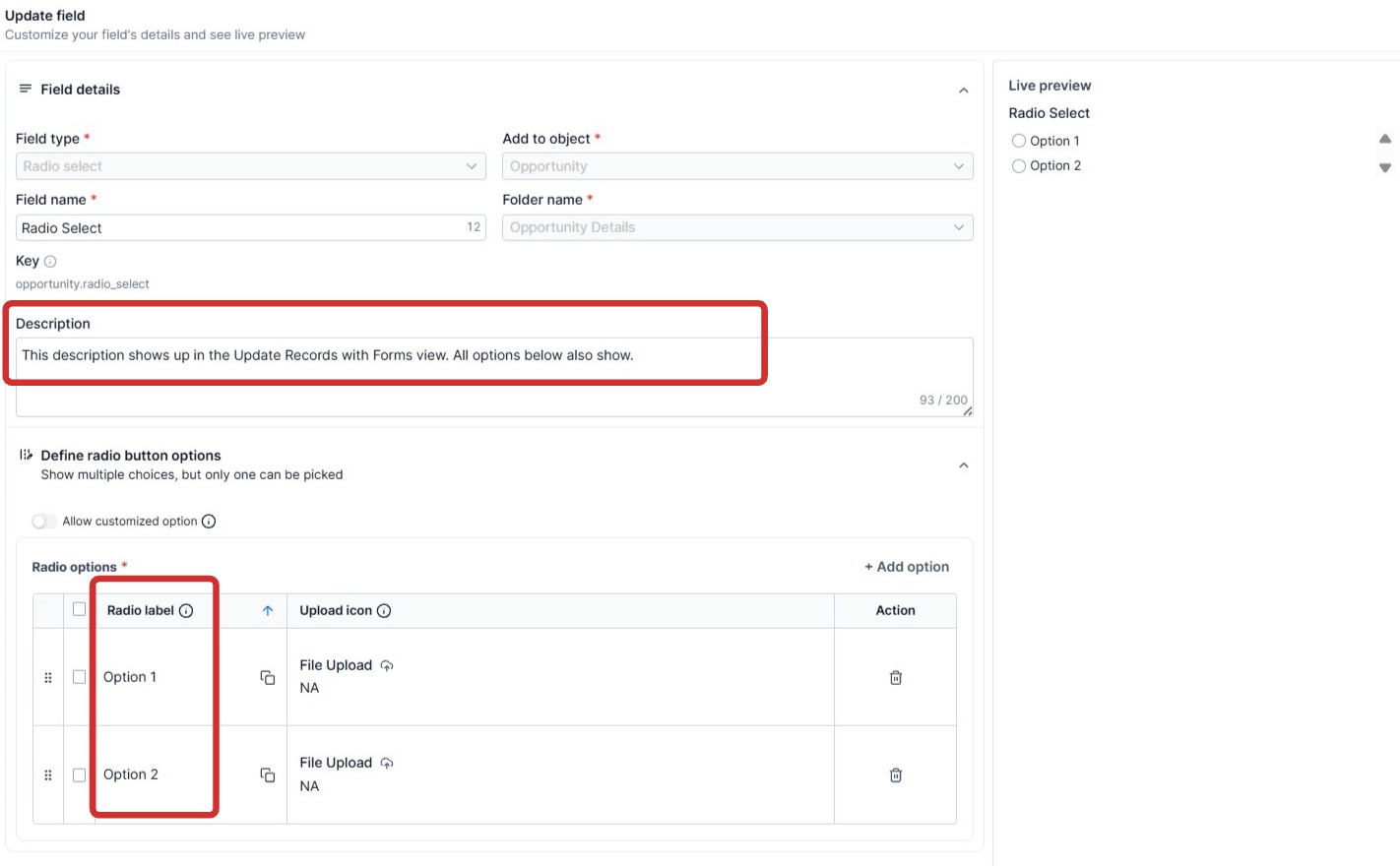
When a field has a description configured in HighLevel, it is displayed underneath that field on the public form. A field with no description configured displays with no extra text.
Signature Fields
A Signature field lets the recipient draw a signature directly on the form, which is uploaded and saved to the record on submit.
A new signature replaces any existing one on that field; it does not add a second signature alongside it. Signature fields don't use the Add/Replace/Optional Deletion modes described in File Uploads – there's always exactly one current signature.
Radio Fields with a Custom Option
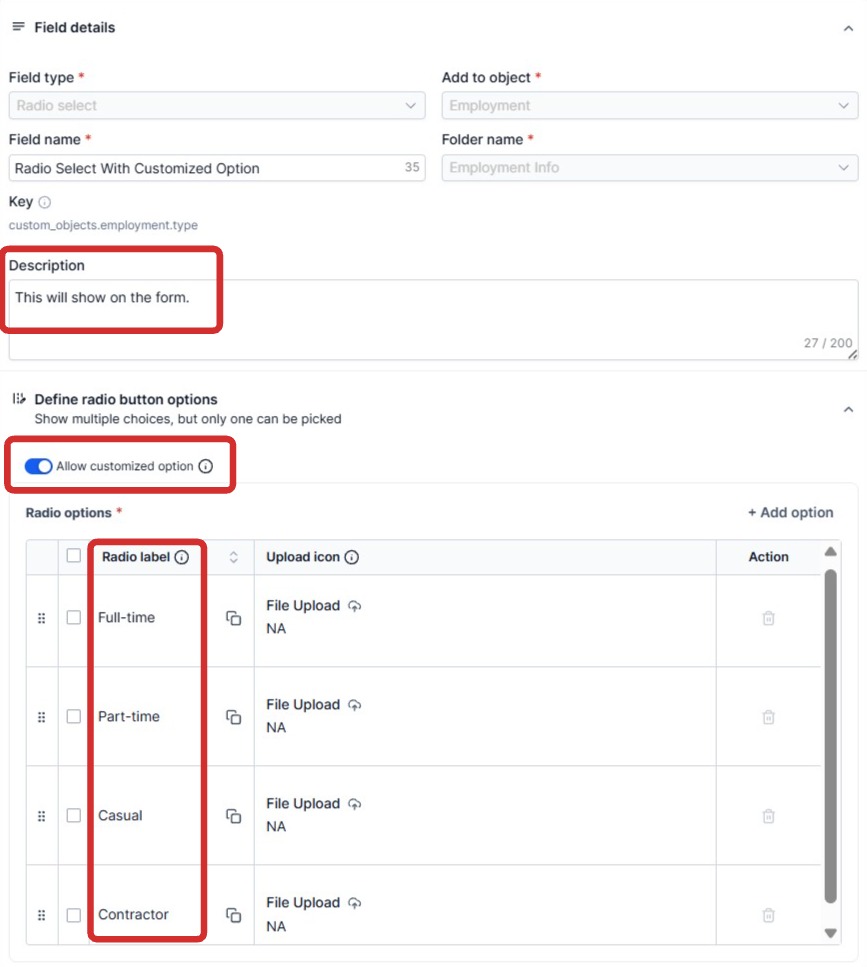
If a Radio (Single Option) field has HighLevel's Allow Custom Option setting enabled, the form adds an Other choice with a free-text box, so the recipient isn't limited to the listed options.
Switching to a listed option and back to Other keeps whatever was typed – it isn't lost just because the recipient looked at the other choices first.
Multi-select Fields
Multi-select fields use a click-to-toggle control instead of a native list box: selected options appear as removable chips in the field itself, and clicking an option in the dropdown adds or removes it. No Ctrl/Cmd-click is needed.
Placeholders and Value Colors
When a text, number, currency, phone, email or URL field has placeholder hint text configured in HighLevel, it's shown in light grey while the field is empty.
Once a field has a value, its text color shows whether the recipient has touched it: a value still exactly as it was when the form opened is shown in blue; a value the recipient has actually typed or changed is shown in black.
Field-level Updates
The app performs field-specific updates. Only values actually changed on the form are written back to HighLevel.
Example: a customer opens a record containing Name, Phone, Email and Address. They change only the phone number. The app writes only the changed phone field back to HighLevel rather than rewriting the whole record.
Concurrent Editing
Only fields the recipient actually changed are written back – the rest of the record is left untouched, and checked for conflicts. A concurrent edit to a different field elsewhere (in HighLevel directly, by another workflow, or by a second copy of the same link) has no effect on this submission at all.
If the record was modified elsewhere and the change overlaps a field the recipient is also changing, submitting that field is blocked rather than silently applied. This is a deliberate, field-level block, not “last save wins.”