
Generate a Form
The Update Records with Forms workflow action creates the secure form link. This page documents every input.
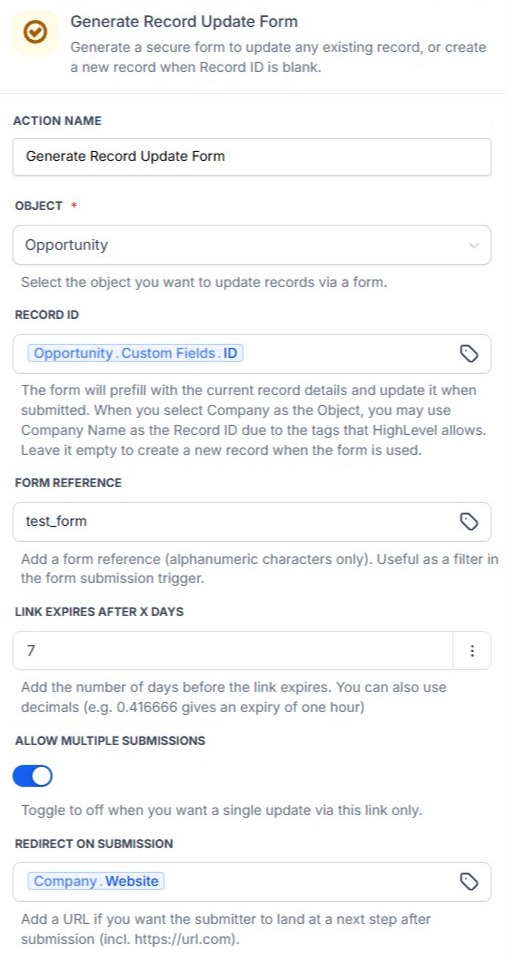
Object
Select the HighLevel object the form should update or create: Contact, Business, Opportunity, or any HighLevel Custom Object.
Record ID
For update mode, provide the ID of the CRM record using a workflow variable.
For creation mode, leave Record ID blank – see Creating New Records.
Form Instructions
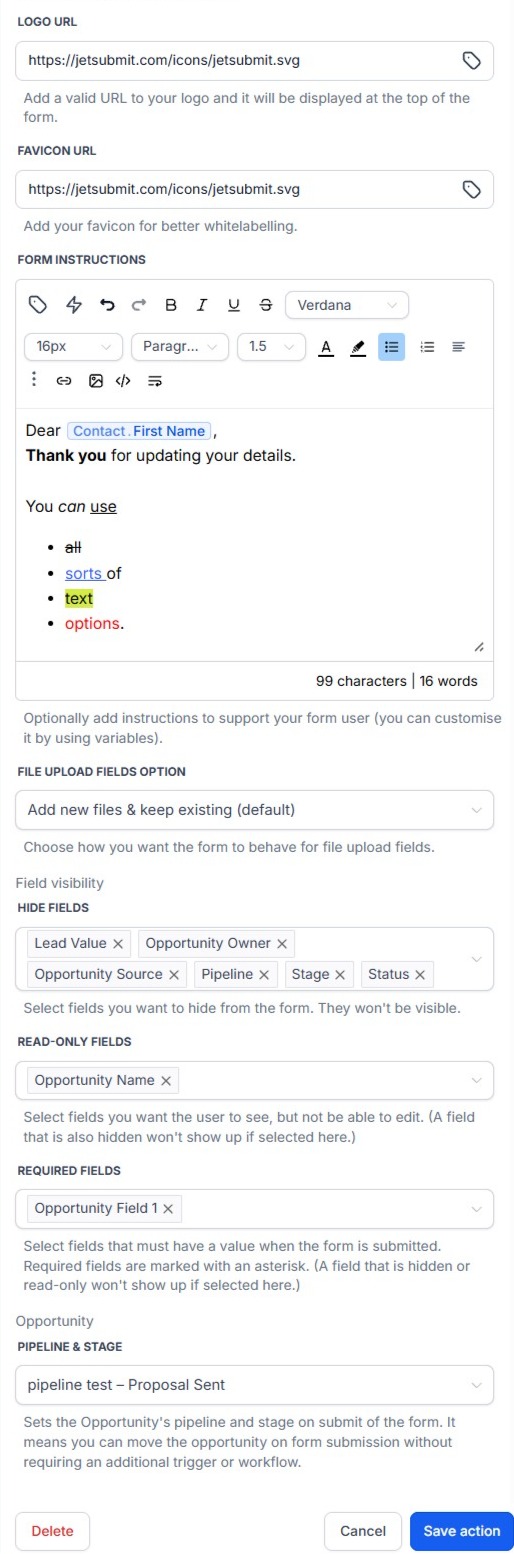
Form Instructions is a rich-text field displayed at the top of the public form. It supports HighLevel workflow variables, so instructions can be customised for each generated form.
Form Instructions support:
- formatted text
- links
- lists
- line breaks
Logo
When a logo is configured, it is displayed on the public form.
Hidden Fields
Selected fields are not displayed to the person completing the form.
Read-only Fields
Selected fields are visible but cannot be edited.
Required Fields
Selected fields must contain a value before the form can be submitted. An existing value satisfies the requirement. If a user clears a required value, submission is blocked. Required fields are intended to be visible and editable.
Allow Multiple Submissions
When enabled, the same form link can be submitted multiple times. When disabled, later submissions after the first successful save are rejected.
Pipeline & Stage
When Object is Opportunity, one extra field appears on the action: Pipeline & Stage, a single dropdown listing every stage across every pipeline. Leave it blank and the form just shows the Opportunity's current pipeline and stage as usual. Set it and the recipient sees that stage pre-filled instead – the form's own Pipeline and Stage fields still show and can still be edited, unless separately hidden or made read-only above.
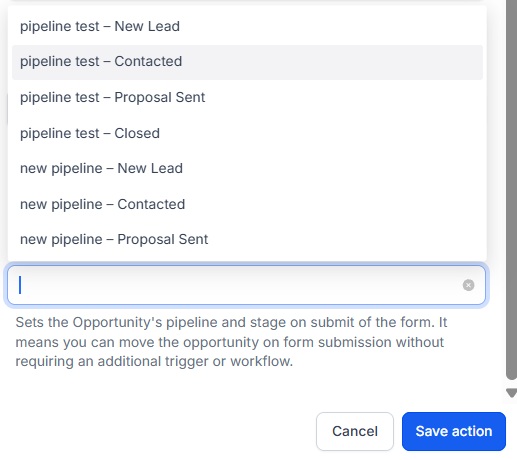
This is what lets a submitted form move an Opportunity to a new Pipeline Stage automatically, with no separate workflow trigger required.